- TapSmart
- Posts
- Tip: Does the always on display waste battery? 🔆
Tip: Does the always on display waste battery? 🔆

Tom Rolfe
September 03, 2024
Welcome back to another daily iPhone guide from Tom at Tips & Tricks.
Ever wonder how much power the always-on display on recent iPhones uses? I did the research. Read on for my conclusions…
You're reading this because you opted in through our app. If you’ve changed your mind, you can always unsubscribe.
What you’ll learn…
🔋 To what degree the always-on display drains battery
🚫 How to disable the function completely
😴 How to use a 'sleep schedule' to turn it off at night
Since iPhone 14 Pro, all iPhones with ‘Pro’ in the name feature an always-on display. That means even when you’re not using your device, you’ll still see a faded Lock Screen, including the clock, notifications, widgets, and a darkened version of your wallpaper.
But is all that screen time wasting precious battery life? The short answer is: yes, but only slightly. Read on for the long answer, plus info on how to deactivate the setting.
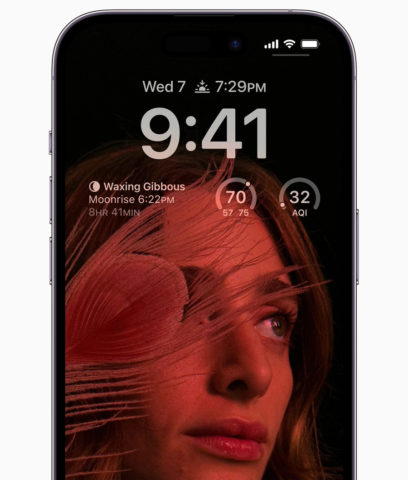
It’s a slick implementation, but there’s a lot going on and no way to customize it. Checking the time at a glance is nice, but some people find the always-on display to be a needless distraction – especially at night or in social situations – and there are battery life implications too.
Apple claims that a 1Hz refresh rate combined with an OLED display ensures that any power drain is negligible, but independent tests have shown it to use close to 1% battery per hour. If you really like the always-on display, that’s probably not a big deal – but for those who don’t find it useful, luckily you can turn it off via Settings > Display & Brightness > Always On. If you find yourself routinely running low on battery by the evening, that could be enough of a boost to make a noticeable difference.
But what about those people who kinda like the always on feature, but wish they could disable it at certain points to create a custom “sometimes on” display instead?
Well, iOS has you covered to some degree already with its automated smarts. Like a tree falling in the forest, or a fridge light with the door closed, it’s hard to verify for certain – but Apple assures us that the always on display automatically deactivates when the iPhone is face down, in a pocket or bag, or you’re nowhere near it. (You’ll need an Apple Watch for it to detect that last one).
Beyond that, the easiest way to control when the always on function is active – without manually diving into Settings – is with the ‘Sleep‘ focus mode. If you already use a Sleep Schedule (configurable from the Health app) your Sleep focus will automatically turn on during your bedtime hours, disabling the always on display as well as triggering any other customizations you’ve set. You can set this up and adjust it to your needs via Settings > Focus > Sleep.
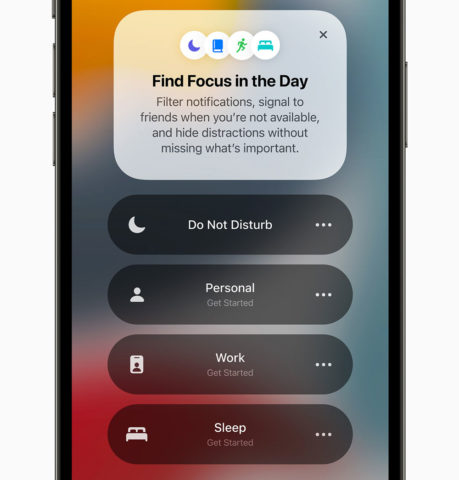
If you don’t want to use Sleep Schedule, there are other options. You can manually toggle the focus on from Control Centerwhen you go to bed, or if you’re a dab hand with the Shortcuts app, you could create a custom Automation to activate your Sleep focus any time you put your iPhone on charge after, say, 9 PM. If you try that, don’t forget to set another Automation to turn it off again when you unplug in the morning!
Finally, it’s worth noting that the always on display is also deactivated by Low Power mode, which gives you another option for quickly disabling the feature – and ensures that battery drain isn’t an issue once you get below 20%.
We’d love to see Apple grant users more freedom with the always on display in a future update – for example, the choice to simply have a black background with the clock showing and nothing more – but until then, the suggestions above are your best bet for keeping the feature under control.
Stay savvy, Tom Rolfe |  |
New to newsletters?
If a friend sent you this, subscribe here to stay in the loop. We’ll drop a tip like this to your inbox every day – no charge.
Enjoying these tips?
Download our free Tips & Tricks app for thousands more iPhone and iPad guides just like this one. We cover the latest Apple news and app releases too.